
Cursor vs Windsurf vs GitHub Copilot: Which Should a New Programmer Use?
Cursor vs Windsurf vs GitHub Copilot is a question almost every new programmer asks in 2026. All three tools promise to write code, explain errors, and help you learn faster. However, they work in very different ways and cost different amounts. One of them even changed its name this year. If you pick the wrong one, you may pay for features you cannot use yet. Worse, you may lean on an AI that does the thinking you should be doing yourself.
This guide compares Cursor, Windsurf, and GitHub Copilot from a beginner’s point of view. You will learn what each tool actually is and what it costs today. You will also see which free plans and student deals exist right now. Most importantly, you will find out which tool fits your stage of learning, so you can start coding with confidence.
Cursor vs Windsurf vs GitHub Copilot: The Quick Answer
If you want the short version, here it is. GitHub Copilot is the safest first choice for most new programmers. It is cheap, it works inside editors you probably already use, and its free plan covers light daily practice. Cursor is the better pick once you know the basics and want a powerful AI editor that understands whole projects. Windsurf, which now ships as Devin Desktop, suits confident learners who want to explore AI agents. Its fast-changing design, though, can confuse someone writing their first program.
Here is how Cursor, Windsurf, and GitHub Copilot compare at a glance.
| Feature | GitHub Copilot | Cursor | Windsurf (Devin Desktop) |
|---|---|---|---|
| What it is | AI assistant that plugs into your editor | Standalone AI code editor | Standalone AI editor with an agent manager |
| Free plan | Yes | Yes (Hobby) | Yes |
| Cheapest paid plan | $10 per month | $20 per month | $20 per month |
| Learning curve | Low | Medium | Medium to high |
| Best for | Complete beginners and students | Beginners building real projects | Learners curious about AI agents |
Prices and limits in this guide reflect September 2026. AI tool pricing changes often, so confirm the latest numbers on each official pricing page before you pay.
What Changed in 2026 Before You Compare
Many older reviews of these tools are now out of date. Three big changes this year affect how you should compare Cursor, Windsurf, and GitHub Copilot.
Windsurf became Devin Desktop. Cognition, the company behind the Devin AI agent, agreed to buy Windsurf in July 2025. Then, on June 2, 2026, it pushed an automatic update that renamed the editor Devin Desktop. Users kept their plans, settings, and extensions. However, the old Cascade agent gave way to a new built-in agent called Devin Local. Since most people still search for Windsurf, this guide uses both names.
Pricing moved toward usage. GitHub switched Copilot to usage-based AI Credits on June 1, 2026. Cursor bills its paid plans against a pool of included model usage. Meanwhile, Windsurf replaced its monthly credits with daily and weekly quotas back in March 2026. In plain English, heavy AI use now costs more on all three tools.
Cursor changed owners. SpaceX bought Anysphere, the company that makes Cursor, in a $60 billion stock deal that closed in August 2026. The editor works the same way for users. Still, the deal shows how fast this market moves. As a beginner, avoid long commitments and stay ready to switch.
What Cursor, Windsurf, and GitHub Copilot Actually Are
Before comparing features, it helps to know that Cursor, Windsurf, and GitHub Copilot are not the same kind of product. Two of them are complete code editors. The third is an assistant that plugs into editors you already use.
Cursor: An Editor Built Around AI
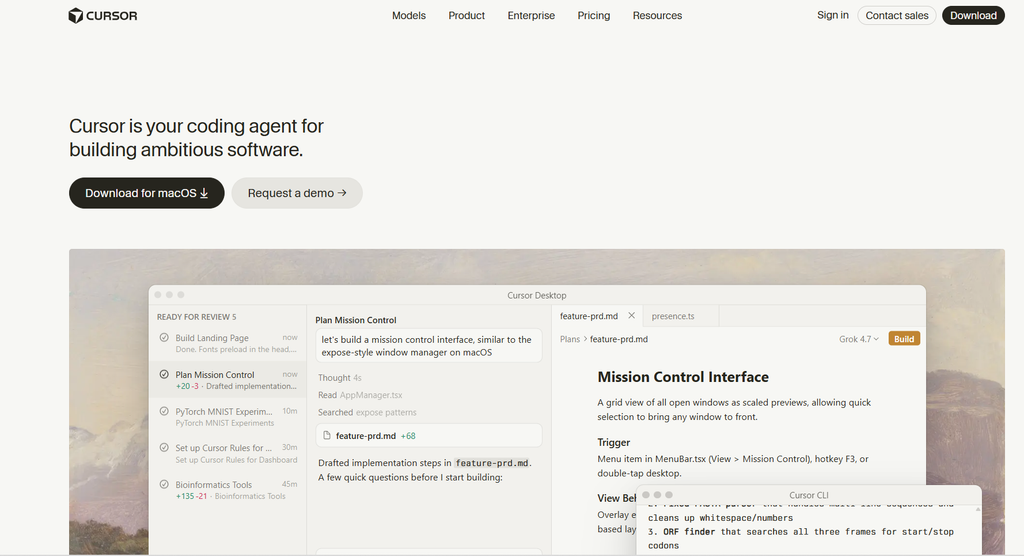
Cursor is a standalone code editor that grew out of Visual Studio Code (VS Code), a popular free editor. Because of this, it looks and feels familiar if you have ever opened VS Code. Your themes, shortcuts, and most extensions carry over.
The difference is that AI sits at the center of everything. Cursor offers Tab autocomplete that predicts your next edit, a chat panel that understands your whole project, and an Agent. The Agent can search your codebase, edit files, run terminal commands, and finish multi-step tasks from plain-English instructions. In April 2026, Cursor 3 added an Agents Window for running several AI agents side by side. The classic editor view is still there, which matters for beginners who want to see and touch every file.
Windsurf, Now Called Devin Desktop
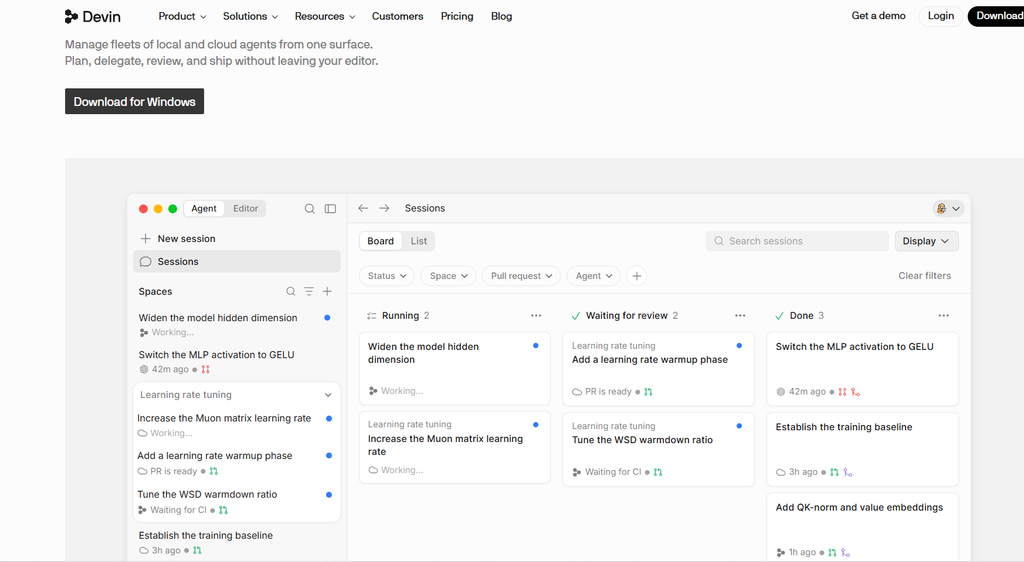
Windsurf began as an AI editor from Codeium. Like Cursor, it builds on VS Code, so the layout feels familiar. Its early fame came from Cascade, an agent that could plan and carry out coding tasks across many files.
Today, the product runs as Devin Desktop under Cognition. When you open it, you see an Agent Command Center. This board shows every AI agent you have running and whether each one is working, blocked, or ready for review. Devin Local now serves as the built-in agent on your computer. On paid plans, you can also send bigger jobs to Devin Cloud. It works in its own cloud machine and returns a pull request when it finishes. Tab autocomplete and inline edits remain part of the package, even on the free plan.
GitHub Copilot: An Assistant That Joins Your Editor
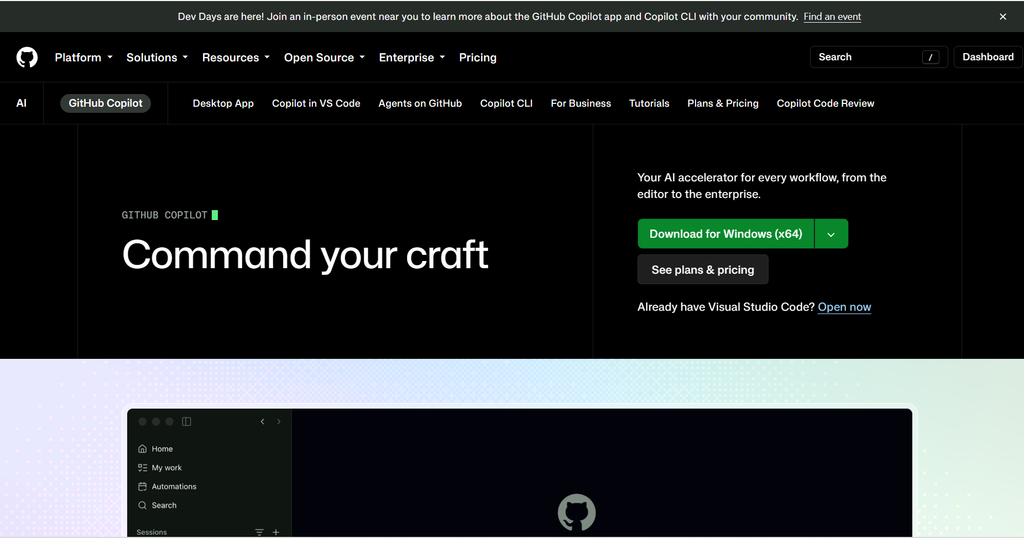
GitHub Copilot takes a different approach. It is not a separate editor. Instead, it is an AI assistant you add to the tools you already use. These include VS Code, Visual Studio, JetBrains IDEs such as PyCharm, Xcode, Eclipse, and Vim or Neovim.
Copilot gives you inline suggestions, a chat panel, and an agent mode that edits files and runs commands. Because it comes from GitHub, it also links tightly to your GitHub account. For example, you can assign a GitHub issue to the Copilot coding agent. It then works on the task and opens a pull request for you to review. For terminal fans, Copilot CLI brings the same help to the command line.
What a New Programmer Needs From an AI Coding Tool
Experienced developers judge these tools on speed and raw power. Beginners need a different scorecard. Here is what matters most while you are still learning.
Easy setup. You want to write code on day one, not fight with settings.
Clear explanations. A good assistant explains why code works instead of just pasting it.
Predictable cost. Surprise bills are the last thing a student needs.
Control over changes. You should see and approve every edit, so you understand your own project.
Room to grow. The tool should still help when you move from small scripts to real apps.
Transferable skills. The habits you build should carry over to a future job.
Keep these six points in mind as we compare Cursor vs Windsurf vs GitHub Copilot in each area below.
Setup and Learning Curve: Cursor vs Windsurf vs GitHub Copilot
Setup is where Cursor, Windsurf, and GitHub Copilot differ most for a true beginner.
GitHub Copilot is the easiest to begin with. If you already use VS Code, you can sign in with your GitHub account right inside the editor and start typing. Nothing about your editor changes. As a result, your attention stays on learning to code rather than learning a new app.
Cursor takes a little more effort. You download a new editor, sign in, and import your VS Code settings if you want them. Most people finish in a few minutes. The bigger adjustment is mental. Cursor shows many AI features at once, including Tab, chat, agents, rules, and the Agents Window. That power helps later, but it can overwhelm someone who is still learning what a variable is.
Windsurf, now Devin Desktop, also installs as its own editor. However, its agent-first home screen assumes you want to manage several AI agents at once. For a beginner, that is a big leap. You can still write code in the normal editor view. Even so, the product clearly aims at developers who hand work off to agents.
Winner for beginners: GitHub Copilot, with Cursor a close second.
Autocomplete and Everyday Coding Help
Autocomplete is the feature you will use most. As you type, the AI suggests the rest of the line or even a whole block. Then you press Tab to accept it.
Cursor, Windsurf, and GitHub Copilot all do this well in 2026. Cursor’s Tab feature is especially popular because it predicts your next edit, not just your next words. Sometimes it even jumps to another line you will need to change. Windsurf keeps unlimited Tab autocomplete on every plan, including the free one. GitHub Copilot offers unlimited completions on its paid and student plans. It also offers next edit suggestions in VS Code.
For a beginner, the quality gap here is small. The bigger question is how much autocomplete you should accept. A useful rule is simple: never accept a suggestion you cannot explain out loud. When you do not understand a suggestion, pause and read it. Then ask the chat panel to explain it line by line. This habit turns autocomplete into a teacher instead of a crutch.
How Cursor, Windsurf, and GitHub Copilot Explain Code
When you are learning, the chat panel matters more than autocomplete. This is where you ask why your loop never ends or what an error message means.
Cursor, Windsurf, and GitHub Copilot all let you highlight code and ask questions in plain English. They also read your open files, so their answers relate to your actual project. For instance, you can paste a Python error and ask what it means. Each assistant will walk you through the cause and the fix.
Cursor stands out as your project grows. It indexes your whole codebase. You can ask, “Where does this app handle user login?” and it points you to the right files. GitHub Copilot handles similar questions well, especially in VS Code. It also works on the GitHub website, which helps when you read other people’s code. Meanwhile, Cognition’s DeepWiki feature can build a written overview of a connected repository, complete with diagrams. That makes large, unfamiliar projects much easier to understand.
One detail affects free and student users of GitHub Copilot. Those plans use automatic model selection, so you cannot pick a specific AI model yourself. For beginner questions, this rarely matters, because the automatic choice handles basic concepts easily.
The AI Models Behind Each Tool
Cursor, Windsurf, and GitHub Copilot do not build all of their own AI. Instead, they connect you to leading models from companies such as OpenAI, Anthropic, and Google. Each one also adds its own in-house models.
Cursor offers its own Composer models alongside the big-name options. Devin Desktop includes Cognition’s fast SWE models, which the company designed for quick edits and agent work. GitHub Copilot lets paid users choose among several top models, while free and student users rely on automatic selection.
Here is the key point for beginners: model choice matters far less than you think. The newest, most expensive models shine on large, complex tasks. However, for learning loops, functions, and debugging, a default or automatic model is more than enough. Choosing premium models on usage-based plans can also drain your monthly allowance faster. So save the heavy models for the rare moments when you truly need them.
Agent Mode: Powerful, but Use It Carefully
Agent mode is the headline feature of 2026. Instead of suggesting one line, an agent takes a goal such as “add a dark mode toggle.” It plans the steps, edits several files, runs commands, and reports back.
Cursor, Windsurf, and GitHub Copilot each include an agent. Cursor has its Agent, plus cloud agents that keep working in the background. Devin Desktop has Devin Local on your computer and Devin Cloud for bigger jobs. GitHub Copilot offers agent mode in the editor and Copilot CLI in the terminal. Its coding agent can also turn GitHub issues into pull requests.
Here is the truth for beginners. Agents can hurt your learning if you rely on them too early. When an agent builds a feature in two minutes, you skip the struggle that teaches you how the feature works. You also end up owning code you cannot debug. Therefore, treat agents like power tools, and learn to use a hand saw first.
That said, agents are handy for chores that teach you little. Setting up a project folder, writing a config file, or renaming a variable across many files are good examples. As long as you review every change, these tasks are a fair place to start.
A Typical Beginner Session in Cursor, Windsurf, and GitHub Copilot
Features are easier to judge when you picture real use. So imagine you want to build a simple to-do list web page with HTML, CSS, and JavaScript. Here is roughly how that session feels in Cursor, Windsurf, and GitHub Copilot.
In GitHub Copilot, you open VS Code and create your three files. As you type the HTML structure, Copilot suggests the next tags and attributes. When your “Add” button does nothing, you select the JavaScript and ask the chat why. It explains that your event listener points to the wrong element ID. You fix it yourself and move on. The whole session feels like normal coding with a helpful partner beside you.
In Cursor, the start looks similar, but the AI feels more present. Tab predicts larger chunks and often suggests your next edit before you ask. If you describe the whole feature in the chat, Cursor’s Agent can create all three files at once. That is fast, yet it also means you must slow down on purpose and read what it wrote.
In Windsurf, now Devin Desktop, you might begin in the Agent Command Center. You describe the to-do app, and Devin Local plans and builds it while you watch its progress. Then you switch to the editor view to review the result. The experience feels more like managing a helper than writing code yourself.
All three sessions end with a working page. However, the default flow of each tool nudges you toward a different amount of hands-on work. For a beginner, that nudge matters a great deal.
Cursor vs Windsurf vs GitHub Copilot Pricing in 2026
Price matters a lot when you are learning. Below, you can see how Cursor vs Windsurf vs GitHub Copilot pricing looks for individual users. All figures are monthly prices in US dollars as of September 2026. Before you pay, check the latest numbers on the Cursor pricing page, the GitHub Copilot plans page, and the Devin pricing page.
| Plan level | GitHub Copilot | Cursor | Windsurf (Devin Desktop) |
|---|---|---|---|
| Free plan | $0 (Free) | $0 (Hobby) | $0 (Free) |
| Entry paid plan | $10 (Pro) | $20 (Pro) | $20 (Pro) |
| Mid tier | $39 (Pro+) | $60 (Pro+) | Not offered |
| Top individual plan | $100 (Max) | $200 (Ultra) | $200 (Max) |
| Team plan | $19 per seat (Business) | $40 per user (Teams) | From $40 per seat (Teams) |
| How usage is measured | Monthly AI Credits | Included usage pool | Daily and weekly quotas |
Free Plans Compared
GitHub Copilot Free gives you about 2,000 code completions and 50 chat requests each month. That covers light daily practice, and you need no credit card to start.
Cursor Hobby is also free and needs no credit card. It includes a limited number of Agent requests and Tab completions. The plan works well for trying the editor, but you will likely hit its limits during longer sessions.
Windsurf Free offers a light quota for agent use, plus unlimited Tab autocomplete and inline edits. That unlimited autocomplete makes it surprisingly useful for practice, even though agent use stays tight.
In short, the free plans of Cursor, Windsurf, and GitHub Copilot all work for learning the basics. Copilot Free is the most predictable, while Windsurf Free offers the most generous autocomplete.
Paid Plans Compared
GitHub Copilot Pro costs $10 a month, which is half the price of the other two. It includes unlimited completions and about $15 worth of AI Credits each month for chat and agent work. GitHub now measures those credits by tokens, so bigger models use up your allowance faster.
Cursor Pro costs $20 a month, or $16 a month with yearly billing. It unlocks extended Agent use, top models, and cloud agents, all drawing on an included usage pool. Light users rarely run out. On the other hand, heavy agent users can hit the limit and pay extra if they turn on on-demand usage.
Windsurf Pro, now sold as Devin Desktop Pro, also costs $20 a month. The price rose from $15 in March 2026. At the same time, the company swapped monthly credits for quotas that refresh daily and weekly. The plan includes premium models, Cognition’s own SWE models, and access to Devin Cloud.
For a beginner on a budget, GitHub Copilot Pro gives the best value. Unlimited completions for $10 cover most of what a learner needs.
Student Discounts
Students should check these offers before paying anything.
GitHub offers Copilot Student for free to verified students through GitHub Education. It includes unlimited code completions and a monthly allowance of AI Credits for chat and agent tasks. GitHub rechecks eligibility regularly. It also paused new Copilot Student sign-ups at one point in 2026. So check what your account shows under Education benefits.
Cursor gives eligible students 12 months of Cursor Pro for free. Verification runs through SheerID, and eligibility currently favors students with a .edu email address. Sadly, that rule excludes many schools outside the United States. After the free year, the plan renews at the normal price unless you cancel.
At the time of writing, GitHub and Cursor run the best-known student programs of the three. If you qualify for both, try each one for free and decide based on real experience.
Editor Support in Cursor, Windsurf, and GitHub Copilot
Where you write code also shapes the Cursor vs Windsurf vs GitHub Copilot decision.
GitHub Copilot works in more places than any rival. It runs in VS Code, Visual Studio, JetBrains IDEs, Xcode, Eclipse, and Vim or Neovim. This flexibility matters if your course uses PyCharm for Python or Xcode for iPhone apps. You simply keep the editor your teacher recommends and add Copilot.
Cursor and Windsurf, by contrast, are mainly their own editors. To get the full experience, you need to switch to them. Both have grown beyond that, though. Cursor can now run inside JetBrains IDEs through the Agent Client Protocol. Devin offers a JetBrains plugin and a command-line tool too. Still, their best features live inside their own apps.
As for programming languages, all three handle popular beginner languages well. Python, JavaScript, TypeScript, Java, C#, C++, HTML, and CSS all get strong support. Quality can dip for rare languages, since the AI models learned from fewer examples of code in those languages.
Privacy, Accuracy, and Safe Habits
AI tools like Cursor, Windsurf, and GitHub Copilot make mistakes. They can write code that looks right but hides bugs, uses outdated methods, or opens security holes. As a beginner, you may not spot these problems yet. For that reason, careful habits matter even more.
Follow a few simple rules. First, read every line before you accept it. Second, run your code and test it yourself. Third, never paste passwords, API keys, or private data into a chat window. Finally, remember that a confident answer is not proof of a correct one.
Privacy settings also deserve a quick look. Cursor offers a Privacy Mode, and GitHub Copilot includes settings that control how GitHub may use your data. Business plans on all three tools add stronger admin controls. If you work on school or company code, ask which tools you may use before you start.
Will an AI Coding Tool Slow Down Your Learning?
This question matters more than price, yet most comparisons skip it. The risk is easy to see. If an AI writes everything, you finish exercises faster. Later, you struggle in exams and interviews where no AI can help.
The goal is not to avoid AI. Professional developers use these tools every day, so working well with them is a real job skill. Instead, the goal is to use AI in a way that builds your understanding. That applies whether you choose Cursor, Windsurf, or GitHub Copilot.
Try these habits:
Write first, ask second. Attempt every exercise on your own before you open the chat.
Ask for hints, not answers. Tell the assistant to guide you with questions instead of solutions.
Explain it back. After the AI helps, explain the solution in your own words or retype it from memory.
Turn off autocomplete for practice. All three tools let you switch off inline suggestions. Many learners turn them off during exercises and back on for projects.
Use AI to review, not to write. Paste your working code and ask how an experienced developer would improve it.
Here is a small example in Python. Say your program should add up a list of numbers, but it prints the wrong total:
python
numbers = [3, 7, 1]
total = 0
for n in numbers:
    total = n
print(total)  # prints 1, but you expected 11
Instead of asking the AI to fix it, try this prompt: “My total prints 1 instead of 11. Give me a hint about the bug, but do not fix it for me.” A good assistant will point you toward the line inside the loop without giving away the answer. You then find the bug yourself, and the lesson sticks.
Pros and Cons of Cursor, Windsurf, and GitHub Copilot
Every tool has trade-offs, so here are the main pros and cons of Cursor, Windsurf, and GitHub Copilot for beginners.
| Tool | Pros | Cons |
|---|---|---|
| GitHub Copilot | Cheapest paid plan at $10; works in many editors; free plan for verified students; fits the GitHub workflow | Free plan allows about 50 chat requests a month; heavy agent use drains AI Credits; free and student plans cannot pick models |
| Cursor | Excellent Tab autocomplete; strong understanding of whole projects; familiar VS Code base; free year for eligible students | Entry plan costs $20; usage billing can surprise heavy users; many features can overwhelm beginners |
| Windsurf (Devin Desktop) | Unlimited Tab autocomplete even on the free plan; powerful local and cloud agents; can run agents from other companies | 2026 rebrand left many tutorials outdated; agent-first design suits confident users; no plan between $20 and $200 |
Notice the pattern here. The features that make a tool powerful for professionals can slow down a beginner. Automation helps experienced developers move faster, while newcomers need visibility and practice.
Cursor, Windsurf, or GitHub Copilot: Which Should You Choose?
There is no single winner in the Cursor vs Windsurf vs GitHub Copilot debate. The right choice depends on where you are in your journey. Use these profiles to find yours.
Pick GitHub Copilot If You Are Just Starting Out
Choose GitHub Copilot if you are in your first months of coding, taking a course, or on a tight budget. It works inside the editor your class probably uses already. The free plan covers light practice, and verified students can get the Student plan at no cost. At $10 a month, Pro is also the cheapest serious option of the three. Along the way, you learn GitHub itself, a skill every developer needs.
Pick Cursor If You Are Building Real Projects
Choose Cursor if you know the basics and now build full projects, such as a web app. Its project-wide understanding makes a real difference once your code spreads across dozens of files. Cursor also teaches a workflow that many professional teams use today. If you are a student with a .edu email, claim the free year of Pro and test it properly.
Pick Windsurf (Devin Desktop) If You Want to Explore AI Agents
Choose Windsurf, now Devin Desktop, if you already feel confident and want to learn how developers direct AI agents. Its Agent Command Center and cloud agents make it a fascinating lab for the future of programming. It can even run coding agents from other companies. The free plan’s unlimited autocomplete is a nice bonus too. However, the product changed a great deal in 2026. Expect many tutorials about Windsurf to show screens that no longer match.
| Your situation | Best starting choice |
|---|---|
| Complete beginner in a first coding course | GitHub Copilot Free or Copilot Student |
| Student with a .edu email | Cursor’s free year of Pro, plus Copilot Student |
| Budget of $10 a month or less | GitHub Copilot Pro |
| Building a portfolio or web app | Cursor Pro |
| Course uses PyCharm, Xcode, or Visual Studio | GitHub Copilot |
| Curious about how AI agents work | Windsurf (Devin Desktop) |
A 30-Day Plan to Test Cursor, Windsurf, and GitHub Copilot
You do not have to guess. Cursor, Windsurf, and GitHub Copilot all have free plans. So you can test all three in one month without spending money.
Week 1: Start with GitHub Copilot Free. Add it to VS Code and complete your usual lessons. Use the chat only for explanations and hints.
Week 2: Try Cursor Hobby. Import your VS Code settings and rebuild the same small project. Notice how Cursor answers questions about your whole folder.
Week 3: Try Windsurf (Devin Desktop) for free. Explore the Agent Command Center, but let the agent handle only one small chore. Afterward, review every change it made.
Week 4: Decide. Ask yourself three questions. Which tool explained things most clearly? Did one feel natural enough to open without thinking? And which one fits your budget once the free limits run out?
Write down your answers and commit to one tool. Switching every week slows you down. In contrast, mastering one tool teaches skills that transfer to the others.
Common Beginner Mistakes With AI Coding Tools
Whether you pick Cursor, Windsurf, or GitHub Copilot, watch out for these common traps.
Paying before you need to. Free and student plans cover most beginner needs. Upgrade only when a limit blocks real work.
Letting the agent do your homework. It feels productive, but you lose the practice that turns you into a programmer.
Ignoring usage settings. Usage-based billing can surprise you. Set a spending limit in Cursor, and keep an eye on your AI Credits in GitHub Copilot.
Following outdated tutorials. Many videos still show old Windsurf screens and old prices. Check the upload date before you follow along.
Chasing the newest model. For beginner questions, the default or automatic model is more than good enough.
Skipping the error message. Before you paste an error into chat, read it once yourself. Errors are often clearer than they first appear.
FAQ: Cursor vs Windsurf vs GitHub Copilot
Is GitHub Copilot better than Cursor for beginners?
For most complete beginners, yes. GitHub Copilot costs less, works in more editors, and keeps things simple. Cursor becomes the stronger choice once your projects grow and you want deeper project-wide help.
Is Windsurf still available in 2026?
Yes, but under a new name. Cognition renamed Windsurf to Devin Desktop on June 2, 2026, through an automatic update. Existing plans and settings carried over, and the old Windsurf website now sends visitors to Devin’s site.
Can I use Cursor, Windsurf, and GitHub Copilot for free?
Yes. All three offer free plans with limits. GitHub Copilot Free includes about 2,000 completions and 50 chat requests a month. Cursor Hobby and Windsurf Free both include limited agent use, and Windsurf Free adds unlimited Tab autocomplete. On top of that, verified students can get Copilot Student for free, and eligible students can get a year of Cursor Pro.
Which AI coding tool is best for learning Python?
All three handle Python well. If your course uses PyCharm, GitHub Copilot is the natural choice because it runs inside JetBrains IDEs. If you use VS Code, any of the three will work smoothly.
Do I need to know how to code before using these tools?
You do not need experience to install them. However, you do need the basics to use them well. AI tools amplify what you already know, and if you cannot read their code, you cannot spot their mistakes. So learn core ideas like variables, loops, functions, and debugging alongside the AI, not after it.
Can I switch tools later?
Yes, and switching is easy. Cursor and Windsurf both build on VS Code, and GitHub Copilot runs inside it. As a result, your settings and skills move with you. Your code also stays in normal files and Git repositories that work with any editor.
Final Verdict: Cursor vs Windsurf vs GitHub Copilot
So, which should a new programmer use? For most people starting in 2026, GitHub Copilot is the best first AI coding assistant. It is affordable, simple, and flexible. Plus, its free and student options remove the cost barrier completely.
Cursor is the natural next step. Once you build real projects, its project-wide understanding and strong agent tools can make you far more productive. And if you qualify as a student, the free year makes it easy to test early.
Windsurf, now Devin Desktop, is the most ambitious of the three. It points toward a future where developers direct teams of AI agents. That makes it exciting to explore, although it is not the easiest place to learn your first loop.
In the end, the best tool is the one that helps you understand code, not just produce it. Start small, treat the AI as a tutor, and let your own skills lead. The Cursor vs. Windsurf vs. GitHub Copilot choice matters far less than the habits you build with whichever tool you pick.
Also read: Git Tools for Beginners: The 10 Best Picks for 2026