
Best AI Coding Assistants for Beginners in 2026: 9 Tools Compared
Picking from the best AI coding assistants for beginners is harder in 2026 than it was a year ago. Prices changed, free plans shrank, and some popular tools even changed their names. As a result, many “top 10” lists online now point new programmers toward plans that no longer exist. This guide fixes that problem. It compares nine tools using current pricing, and it explains which one fits your goals, your budget, and your skill level.
You will learn what each AI coding assistant does, what it costs, and where it can trip up a new learner. In addition, you will get a simple method for using AI without letting it do your thinking for you. By the end, you will know exactly which tool to install first.
Disclosure: BeginnerStack may earn a commission if you buy through some links on this page. This does not change our rankings or recommendations.
Quick Answer: Our Top Picks at a Glance
If you only have a minute, this table gives you the short version. Each tool gets a full review further down the page.
| Rank | Tool | Best For | Free Option | Paid Plans From |
|---|---|---|---|---|
| 1 | GitHub Copilot | Learning inside VS Code | Yes (Copilot Free, free Student plan) | $10/month |
| 2 | Cursor | An all-in-one AI code editor | Yes (Hobby) | $20/month |
| 3 | Claude Code | Understanding and changing whole projects | No | $20/month (Claude Pro) |
| 4 | OpenAI Codex | People who already use ChatGPT | Yes (limited) | $8/month (ChatGPT Go) |
| 5 | Windsurf (Devin Desktop) | Free, unlimited autocomplete | Yes | $20/month |
| 6 | Google Antigravity | Free experiments with AI agents | Yes | $19.99/month (Google AI Pro) |
| 7 | Replit Agent | Coding in the browser with zero setup | Yes (Starter) | About $20/month |
| 8 | Kiro | Learning to plan before you code | Yes (50 credits/month) | About $20/month |
| 9 | JetBrains AI | PyCharm and IntelliJ users | Yes (AI Free) | $10/month |
What Is an AI Coding Assistant?
An AI coding assistant is software that uses a large language model to help you write, read, and fix code. However, not every tool works the same way. In practice, you will meet four main types.
Autocomplete tools predict the next few lines as you type. You press Tab to accept a suggestion. This is the gentlest form of help, because you stay in control of every line.
Chat assistants sit in a side panel inside your editor. You ask a question in plain English, such as “Why does this loop never stop?”, and the assistant answers with an explanation and sample code.
Coding agents go further. They read your project, edit several files, run commands in the terminal, and then report back. Agents save time, but they also make bigger changes that a beginner must learn to review.
App builders work in the browser. You describe an app, and the tool writes, runs, and publishes it for you. They are fun for quick results, although they hide much of the code you are trying to learn.
Most tools in this guide now mix two or more of these types. For example, GitHub Copilot offers autocomplete, chat, and an agent in one package. Therefore, the real question is not “Which type?” but “Which mix suits the way I learn?”
What Changed for AI Coding Tools in 2026
Before you compare tools, you need to understand the big shifts of 2026. These changes explain why older reviews are now unreliable.
First, flat prices turned into usage meters. GitHub explained the reason clearly. Under the old model, a quick chat question and a multi-hour autonomous coding session could cost the user the same amount. So the company switched. As of June 1, all Copilot plans bill based on GitHub AI Credits consumed, and each plan comes with monthly included usage. Cursor, Windsurf, Replit, and Kiro also use credits or quotas now.
Second, some sign-ups were paused. GitHub’s change, effective 20 April, left Copilot Free as the only plan still accepting new individual sign-ups, and GitHub gave no timeline for resuming new subscriptions. We cover what this means for you in the Copilot review below.
Third, a famous free tool disappeared. On June 18, 2026, Google stopped serving Gemini CLI requests for free, Google AI Pro, and Google AI Ultra accounts, as well as individual Gemini Code Assist users. Many older “best free AI coding tools” articles still recommend it.
Fourth, familiar names changed. Windsurf now operates as Devin Desktop, and Amazon Q Developer is being replaced by Kiro. Both stories appear in the reviews below.
The lesson is simple. Always check a tool’s official pricing page before you subscribe, because plans in this market move fast.
How We Picked the Best AI Coding Assistants for Beginners
We did not rank these tools by raw power alone. Instead, we judged them the way a new programmer experiences them. Here are the six criteria we used.
- A usable free option. Beginners should be able to try a tool before paying for it.
- Easy setup. A tool that needs complex configuration loses points because setup problems stop many learners in week one.
- Quality of explanations. The best AI coding assistants for beginners explain why code works, not just what to type.
- Control and safety. Good tools show you changes before applying them, and they ask before running commands.
- Predictable cost. Surprise bills hurt students most, so clear limits and budget controls matter.
- Staying power. We favored products with active development and a stable future.
We based every price and plan detail on official announcements and pricing reviews published in 2026. Nevertheless, you should confirm prices yourself before buying, since they can change without notice.
The 9 Best AI Coding Assistants for Beginners in 2026
1. GitHub Copilot: Best Overall AI Coding Assistant for Beginners
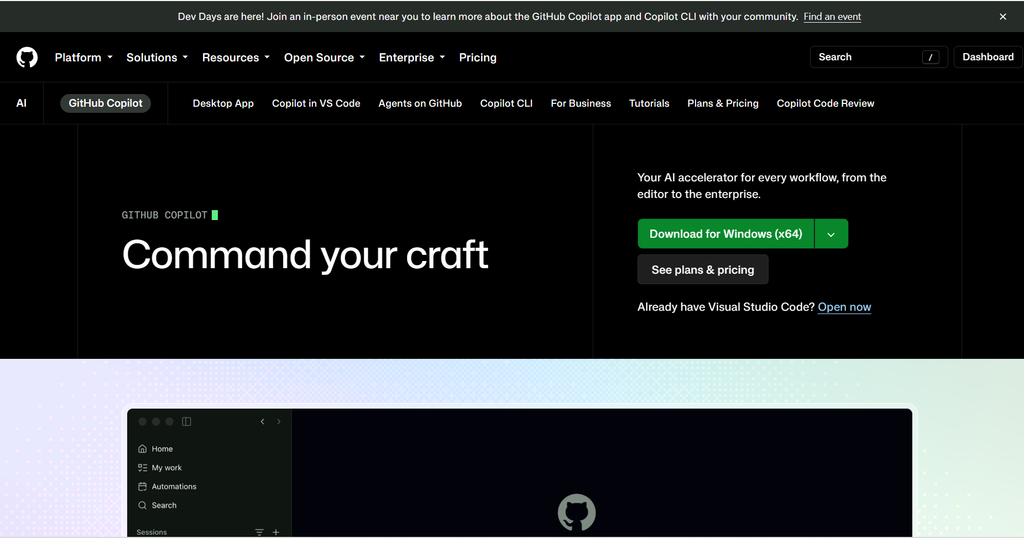
GitHub Copilot remains the easiest starting point for most new programmers. It works as an extension inside the editor you probably already use. In fact, Copilot supports VS Code, JetBrains IDEs, Neovim, Xcode, and more, so you rarely need to switch tools.
What you get for free. Copilot Free includes up to 2,000 code completions and an allowance of GitHub AI Credits, with limited chat and agent usage and a selection of models. It requires no subscription or payment. For someone writing their first Python scripts, that is enough to feel the benefit.
Free access for students. Verified students can access unlimited completions and additional models at no cost through the GitHub Copilot Student plan. You qualify through GitHub Education.
Paid pricing. Pro costs $10 per user per month, Pro+ costs $39, and Max costs $100. Every plan now runs on credits. Each plan includes a monthly allowance, where 1 AI credit equals $0.01 USD. Chatting with Copilot, working with agents, and using Copilot CLI consume credits, while code completions and next edit suggestions stay unlimited on every paid plan.
An important warning. In April 2026, GitHub paused new sign-ups for its paid individual plans. GitHub’s own documentation still states that starting April 20, 2026, new sign-ups for Copilot Pro, Copilot Pro+, Copilot Max, and student plans are temporarily paused, although existing plans can be upgraded. Copilot Free, however, stays open to everyone. Check the official Copilot plans page to see whether sign-ups have reopened.
Why beginners like it. Copilot’s suggestions appear right where you type. Moreover, the chat panel can explain a highlighted block of code line by line. Because GitHub also hosts your projects, you learn two industry-standard tools at once.
Watch out for. The free plan’s 2,000 completions can run out within a few busy weeks. Also, credit-based billing means heavy agent use costs more than light chat.
Best for: Complete beginners using VS Code, and verified students.
Also Read : Git Tools for Beginners: The 10 Best Picks for 2026
2. Cursor: Best All-in-One AI Code Editor
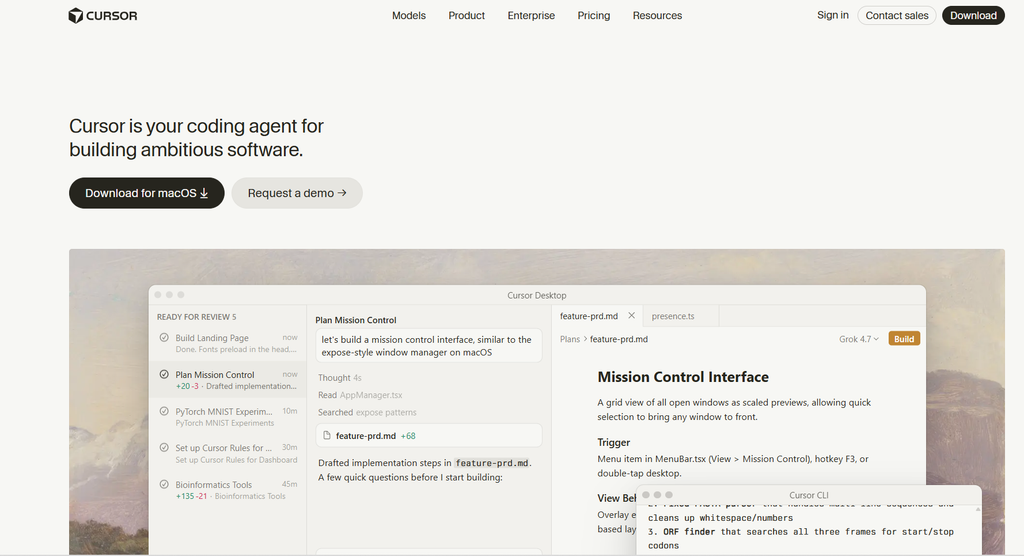
Cursor is a full code editor built around AI, rather than an add-on. It looks and feels like VS Code, so the learning curve is gentle. Its free plan offers full access to the Cursor editor and its VS Code-compatible features, plus support for extensions and themes from the VS Code marketplace.
Cursor also pushes hard on agents. In October 2025, Cursor released Cursor 2.0, which added support for running multiple agents in parallel. Beginners will not need parallel agents right away. Still, it shows how quickly the product grows.
Pricing. Cursor offers six plans: Hobby (free), Pro ($20/month), Pro+ ($60/month), Ultra ($200/month), Teams ($40/user/month), and Enterprise (custom). All paid plans include a monthly credit pool equal to the plan price, plus unlimited Auto mode requests. In addition, annual billing saves roughly 20 percent, so Pro drops from $20 to approximately $16 per month.
Free plan details. The Hobby plan is free with no credit card required. It includes limited Agent requests and Tab completions, plus a one-week Pro trial for new accounts.
Why beginners like it. Everything lives in one window: autocomplete, chat, and agents. You can highlight an error, press a shortcut, and ask Cursor to explain it. Consequently, you spend less time jumping between browser tabs and your editor.
Watch out for. Cursor’s pricing has surprised users before. A July 2025 change to the $20 Pro plan provoked complaints about unexpected charges, and the company rolled back limits and promised refunds. The safe habit is to stay on Auto mode, since manually picking premium models draws down your credit pool faster.
Best for: Beginners who want a modern editor with AI built into every feature.
3. Claude Code: Best for Understanding Whole Projects
Claude Code is Anthropic’s coding agent. It reads your entire project, explains how the pieces fit together, and makes changes across many files. You can run it in a terminal, inside editors such as VS Code, or through the Claude desktop app. Importantly, it asks for your permission before it edits files or runs commands, which keeps you in the loop.
Pricing. Claude Code is bundled into Claude Pro ($20/month), Max 5x ($100/month), Max 20x ($200/month), Team and Enterprise plans, or pay-as-you-go API. There is no standalone Claude Code price. Pro also drops to $17 a month when billed annually. Note that the free Claude plan does not include Claude Code.
How limits work. Limits reset on a 5-hour rolling window plus a weekly cap. Hitting either one pauses your session. For a learner working an hour or two each day, the Pro plan is normally enough.
Why beginners like it. Claude Code is excellent at explanation. For example, you can type “Walk me through what happens when a user logs in to this app,” and it will trace the code path file by file. That turns a confusing project into a guided tour. It also writes clear commit messages and tests when you ask.
Watch out for. The terminal version assumes you know a few basic commands, such as cd and ls. If the terminal feels scary, start with the desktop app or the VS Code extension instead. Also, remember that there is no free tier to experiment with.
Best for: Beginners who have outgrown tiny scripts and want help understanding real, multi-file projects.
4. OpenAI Codex: Best AI Coding Assistant for ChatGPT Users
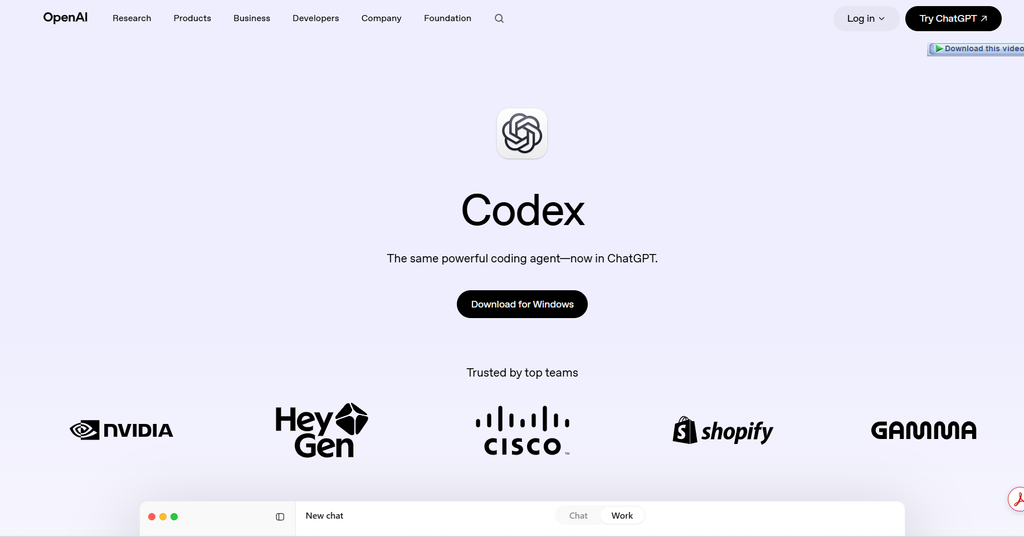
If you already pay for ChatGPT, you may already own a capable coding agent. OpenAI Codex does not have one standalone monthly price. Instead, access depends on your ChatGPT plan, workspace plan, or API key.
Pricing. The personal ladder runs from Free at $0 to Go at $8, Plus at $20, Pro 5x at $100, and Pro 20x at $200. The Plus plan is where Codex opens up, with expanded Codex usage across web, CLI, IDE extension, and iOS.
Why beginners like it. Codex feels familiar if you already chat with ChatGPT every day. You can hand it a task in the browser, let it work in the cloud, and then review the result. Furthermore, the IDE extension brings the same help into VS Code.
Watch out for. Free and Go access is limited, so serious practice usually starts at Plus. Also, cloud tasks can produce large changes. Always read what Codex changed before you merge it into your project.
Best for: Learners who already use ChatGPT Plus and want to avoid a second subscription.
5. Windsurf (Now Devin Desktop): Best Free Autocomplete
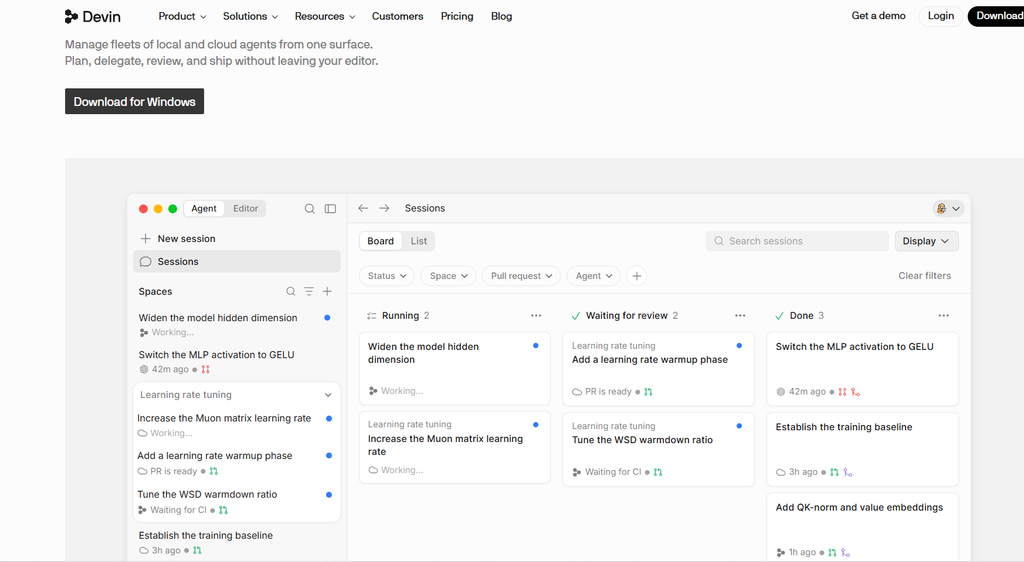
Windsurf has gone through a lot of change. The editor is now owned by Cognition, the company behind the Devin agent. Then, in mid-2026, it got a new name. Cognition rebranded the editor on 2 June 2026. Plans and prices are unchanged, but you will now find them at devin.ai, since windsurf.com redirects there.
Pricing. As of August 2026, there are four public price points: Free at $0, Pro at $20 per month, Max at $200 per month, and Teams at $80 per month plus $40 per full developer seat, with Enterprise priced on request. Instead of a monthly pool, it uses quotas. The most significant change is the shift from a monthly credit pool to daily and weekly usage quotas that refresh automatically.
Why beginners like it. The free plan is unusually generous for everyday typing help. Tab completions and inline edits are unlimited, so if you mostly want a fast in-editor assistant rather than an autonomous agent, you can live on it for a while.
Watch out for. What Free restricts is the agent: model choice is limited, and the quota for agent runs is light. Additionally, the rename can confuse beginners who follow older tutorials that still say “Windsurf.”
Best for: Beginners on a zero budget who mainly want smart autocomplete.
6. Google Antigravity: Best Free Playground for AI Agents
Google Antigravity replaced Google’s older free coding tools for individuals. It is Google’s agent-first development platform, announced in November 2025 alongside Gemini 3. Its standout feature is the agent manager: a dedicated surface where you spawn, orchestrate, and observe multiple agents working asynchronously across different workspaces.
Pricing. Google Antigravity costs $0 on the free Individual tier. There is no Antigravity-only subscription: paid quota rides on Google AI plans at $19.99 (Pro), $99.99 (Ultra 5x), and $199.99 (Ultra 20x) a month. The free tier comes with unlimited Tab completions, unlimited Command requests, and a weekly agent quota.
Why beginners like it. You can watch AI agents plan, write, and test code without paying anything. That makes it a good sandbox for learning how agent workflows operate.
Watch out for. The free allowance has been shrinking. The free quota has been tightened repeatedly since launch, and higher limits now ride on Google AI subscriptions. Also, running several agents at once can overwhelm a beginner. Start with one agent and one small task.
Best for: Curious beginners who want to experiment with agents for free.
7. Replit Agent: Best for Zero-Setup Coding in the Browser
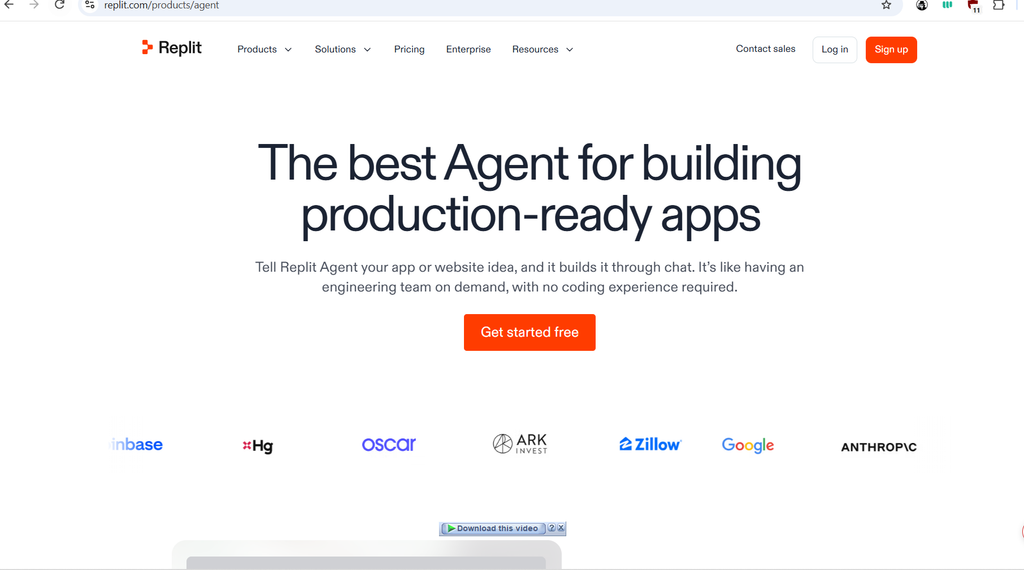
Replit runs entirely in your web browser. You do not install Python, Node.js, or an editor. Instead, you open a tab, describe what you want, and Replit Agent builds and runs it. For many beginners, removing setup is the single biggest win. [Internal link: your beginner’s guide to setting up a coding environment]
Pricing. The Starter plan is free and includes daily Agent credits and one published project. Above that, Core costs $25 per month (or $20 per month billed annually), Pro costs $100 per month, and Enterprise is custom. Each paid plan bundles monthly usage credits that pay for Agent work, deployments, compute, and storage.
Why beginners like it. You see a working app within minutes, and you can share it with a link. That quick feedback keeps motivation high, especially in the first month.
Watch out for. Replit bills Agent work by effort. Replit Agent charges by how much work a task takes, bundled into “checkpoints,” and you do not see the price until after the checkpoint is created and your credits are debited, including for attempts that fail. Therefore, keep your requests small and specific. Vague prompts like “build me a social network” burn credits fast.
Best for: Absolute beginners who want results today without installing anything.
8. Kiro: Best for Learning to Plan Before You Code
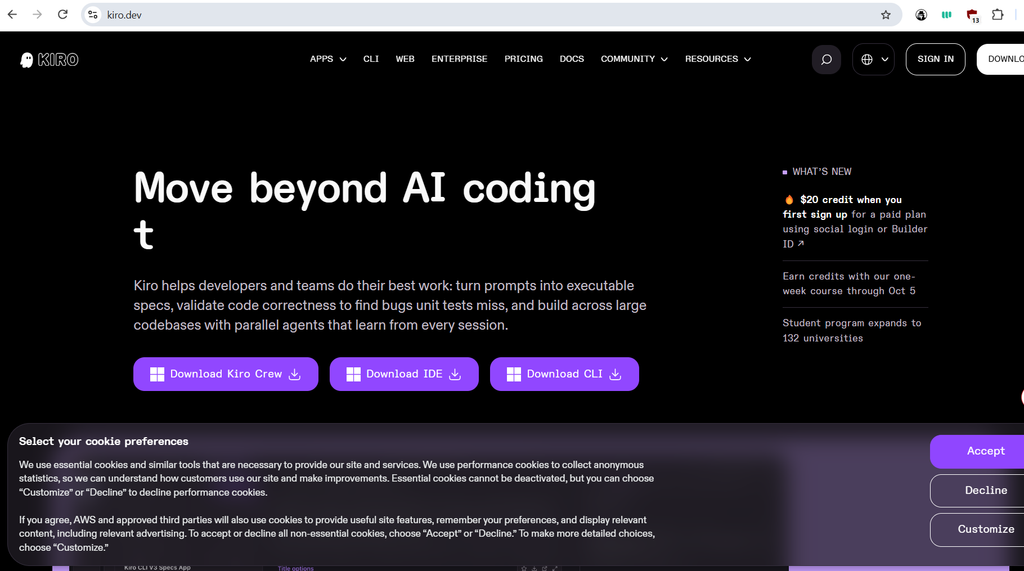
Kiro is Amazon Web Services’ AI code editor, and it teaches a valuable habit. Rather than jumping straight to code, it uses spec-driven development that produces requirements, design docs, and sequenced tasks before writing code. In other words, it models how professional engineers plan features.
Kiro is also the successor to Amazon Q Developer. New Q Developer sign-ups were blocked from May 15, 2026, and IDE plugins and paid subscriptions reach full end-of-support on April 30, 2027. So if a tutorial tells you to install Amazon Q, use Kiro instead.
Pricing. The Free tier gives you 50 credits per month, with no credit card required, and paid plans start at $20 per month. Students may benefit too. According to one August 2026 review, eligible university students get 1,000 credits per month free for a year.
Why beginners like it. Kiro feels familiar because it is built on Code OSS, so VS Code settings and Open VSX extensions carry over. More importantly, its written specs show you how to think about a feature before you build it.
Watch out for. Fifty credits disappear quickly if you use spec mode often. In addition, the planning step can feel slow when you just want to fix a typo.
Best for: Beginners who want to build good engineering habits from day one.
9. JetBrains AI: Best AI Programming Assistant for PyCharm and IntelliJ Users
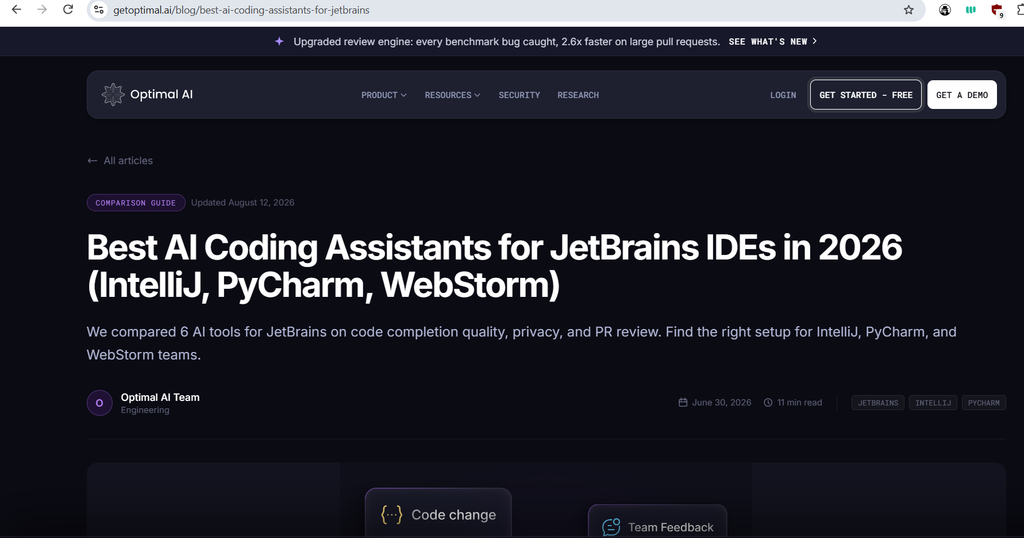
Many schools and bootcamps teach Python in PyCharm and Java in IntelliJ IDEA. If that describes you, JetBrains AI fits right into the tools you already have. It includes chat, completions, and Junie, JetBrains’ coding agent.
Pricing. JetBrains AI has four tiers: AI Free ($0, 3 credits per 30 days), AI Pro ($10/month, 10 credits), AI Ultimate ($30/month or about $20/month annually, 35 credits), and AI Enterprise (custom). One AI Credit equals $1 USD. Also, AI Pro is included with the All Products Pack and dotUltimate at no extra cost.
Why beginners like it. The integration is deep. JetBrains IDEs already understand your code’s structure, so the AI can refer to the right classes and methods with fewer mistakes.
Watch out for. The free tier is thin for agent work. It gives unlimited Mellum code completion plus 3 cloud credits per 30 days, but it excludes Frontier models, Junie, Android Studio, and the Community editions of IntelliJ IDEA and PyCharm.
Best for: Students and learners who already code in a JetBrains IDE.
AI Coding Assistant Pricing Comparison for 2026
The table below compares entry costs and billing styles side by side. Prices are in US dollars per month for individual plans.
| Tool | Free Tier | Entry Paid Plan | Higher Plans | Billing Style |
|---|---|---|---|---|
| GitHub Copilot | 2,000 completions + small credit allowance | $10 (Pro) | $39 (Pro+), $100 (Max) | AI Credits |
| Cursor | Limited agent and Tab use | $20 (Pro) | $60 (Pro+), $200 (Ultra) | Credit pool + unlimited Auto |
| Claude Code | None | $20 (Claude Pro) | $100 (Max 5x), $200 (Max 20x) | 5-hour window + weekly cap |
| OpenAI Codex | Limited | $8 (Go) | $20 (Plus), $100 and $200 (Pro) | Plan limits + credits |
| Windsurf / Devin Desktop | Unlimited Tab, light agent quota | $20 (Pro) | $200 (Max) | Daily and weekly quotas |
| Google Antigravity | Unlimited Tab, weekly agent quota | $19.99 (Google AI Pro) | $99.99, $199.99 (Ultra) | Quotas + optional credits |
| Replit | Daily Agent credits, 1 published app | $20 to $25 (Core) | $100 (Pro) | Effort-based credits |
| Kiro | 50 credits | $20 (Pro) | Higher tiers available | Credits |
| JetBrains AI | 3 credits + local completion | $10 (AI Pro) | $30 (AI Ultimate) | Credits ($1 each) |
Looking at the table, one pattern stands out. Almost every entry plan costs between $10 and $20. So the real difference is not the sticker price, but how quickly each plan’s allowance runs out.
Which AI Coding Tool Should a Beginner Choose?
The best choice depends on your situation. Use these scenarios as a shortcut.
You have never written code and want no setup. Start with Replit’s free Starter plan. You will see results in minutes, and you can move to a local editor later.
You are a verified student. Apply for GitHub Education, then check whether Copilot Student sign-ups are open. If they are still paused, use Copilot Free in the meantime. Also look at Kiro’s student offer.
You are learning Python or JavaScript in VS Code. Install Copilot Free first. If you want a more AI-centered editor, try Cursor’s Hobby plan next. [Internal link: your Python for beginners guide]
You already pay for ChatGPT Plus. Try Codex before buying anything else. You may not need a second subscription at all.
You have a real project that confuses you. Claude Code on the Pro plan is the strongest choice for explaining and reorganizing multi-file projects.
Your budget is exactly zero. Combine Windsurf’s free unlimited autocomplete with Google Antigravity’s free agent quota. Together, they cover a lot of ground.
Your class uses PyCharm or IntelliJ. Use JetBrains AI, because it lives inside the tools your course already requires.
You want to learn professional habits. Choose Kiro. Its spec-first approach teaches planning, which many self-taught programmers skip.
How to Learn With an AI Coding Assistant (Without Letting It Think for You)
Here is the uncomfortable truth. An AI code helper can make you faster while making you learn less. The fix is not to avoid AI. Instead, change how you use it. The following habits help beginners get the benefits without the trap.
Write First, Then Ask for Review
Try to solve the problem yourself before opening the chat panel. Then paste your attempt and ask, “What is wrong with my solution, and why?” This way, the AI acts like a tutor rather than a ghostwriter.
Ask for Explanations, Not Just Answers
A good prompt asks for reasoning. For example:
“Explain this function line by line as if I am a complete beginner. Then list two edge cases it does not handle.”
This prompt forces the assistant to teach. Furthermore, the edge-case request trains you to spot weaknesses in code.
Test Everything the AI Writes
AI-generated code often works for the obvious case and fails on the unusual one. Consider this simple example. The language is Python 3.
Suppose you ask an assistant for a function that averages a list of numbers. A first draft often looks like this:
python
# Language: Python 3
def average(numbers):
    return sum(numbers) / len(numbers)
It works for [2, 4, 6]. However, an empty list causes a ZeroDivisionError. A safer version checks the input first:
python
# Language: Python 3
def average(numbers):
    """Return the average of a list of numbers."""
    if not numbers:
        raise ValueError("numbers must not be empty")
    return sum(numbers) / len(numbers)
Next, write small tests with the pytest library to prove it behaves correctly:
python
# Language: Python 3 (requires: pip install pytest)
import pytest
from stats import average

def test_average_basic():
    assert average([2, 4, 6]) == 4

def test_average_empty_list():
    with pytest.raises(ValueError):
        average([])
Run pytest in your terminal. If both tests pass, you can trust the function. More importantly, you now understand why the first draft was risky.
Make One Change at a Time
Agents can rewrite ten files in one go. For a beginner, that is too much to review. So ask for one small change, read it, run it, and then continue.
Save Your Work With Git
Commit your code before every AI change. If the assistant breaks something, you can simply roll back. Learning Git early is one of the best habits you can build. [Internal link: your Git and GitHub beginner guide]
Common Mistakes Beginners Make With AI Code Tools
Even the best AI coding assistants for beginners cannot protect you from a few classic mistakes. Watch for these.
Accepting code you cannot explain. If you cannot describe what a line does, do not keep it yet. Ask the AI to explain it first.
Using vague prompts. “Make it better” gives the assistant nothing to work with. Instead, say exactly what “better” means, such as “make this run faster on lists with 10,000 items.”
Picking the most expensive model every time. Premium models burn through credits quickly. For most beginner tasks, the default or Auto setting works fine.
Skipping error messages. Many beginners paste an error into the chat without reading it. Read it yourself first. Error messages are one of your best teachers.
Letting agents run commands blindly. Agents can install packages and delete files. Therefore, read each command before you approve it.
Switching tools every week. Each tool has a learning curve. Pick one, use it for a month, and only then decide whether to switch.
Staying Safe: Privacy, Security, and Cost Controls
AI tools see the code you share with them, so a little caution goes a long way.
Never paste secrets. Keep passwords, API keys, and personal data out of your prompts. Store secrets in environment variables or a .env file, and add that file to .gitignore.
Review commands before approving them. A mistyped command can wipe a folder. Good agents ask permission for a reason, so take that pause seriously.
Set spending limits. Credit-based billing can surprise you. GitHub, for instance, lets you cap extra spending. When you reach your included credits, additional usage is billed at $0.01 per credit and can be capped; once you hit the cap, Copilot’s premium features pause until the month rolls over. Look for similar budget settings in every paid tool you use.
Check licenses on bigger projects. If you plan to publish or sell your project, review the terms of each tool you use. Business plans often include extra legal protections that free plans do not.
Frequently Asked Questions
What is the best free AI coding assistant for beginners in 2026?
GitHub Copilot Free is the best starting point for most people, because it works inside VS Code and needs no payment. If you want unlimited autocomplete, Windsurf’s free plan is also strong. For free agent experiments, try Google Antigravity.
Is GitHub Copilot free for students?
Yes. Verified students can use the free Copilot Student plan through GitHub Education. However, GitHub paused new Student sign-ups in April 2026, so check the official page for the current status. Copilot Free remains available in the meantime.
Is Claude Code good for beginners?
Yes, especially for understanding larger projects. Its explanations are clear, and it asks before making changes. The main hurdles are the lack of a free tier and the terminal interface, although the desktop app and VS Code extension make it friendlier.
Can an AI coding assistant replace learning to code?
No. AI tools make mistakes, and you need coding knowledge to catch them. Think of an AI coding assistant as a patient tutor. It speeds up learning, but it cannot do the learning for you.
Which AI coding assistant is best for Python beginners?
For Python in VS Code, GitHub Copilot and Cursor are both excellent. If your course uses PyCharm, choose JetBrains AI. Meanwhile, Replit is great if you want to run Python in the browser with no setup.
Do I need a powerful computer to use these tools?
No. The AI models run in the cloud, not on your laptop. Any computer that runs VS Code comfortably will work. Replit and the web version of Codex work even on a basic Chromebook.
Will these prices stay the same?
Probably not. Several tools changed their pricing more than once in 2026. Treat every price in this article as a snapshot from September 2026, and confirm details on each official pricing page.
Final Verdict: The Best AI Coding Assistants for Beginners Right Now
After weighing price, ease of use, and learning value, our overall pick is GitHub Copilot. It is free to start, it fits into the most popular editor, and it grows with you from autocomplete to agents. Cursor is a close second for learners who want an editor designed around AI. Claude Code earns third place because nothing explains a confusing project better.
That said, the best AI coding assistants for beginners are the ones you actually use to learn. Choose one tool, write code yourself first, ask for explanations, and test everything. Do that consistently for a few months, and you will be surprised by how far you progress.
Ready to start? Install Copilot Free or Cursor’s Hobby plan today, open a small Python project, and ask your new assistant to explain its first suggestion line by line.
Also Read : Cursor vs Windsurf vs GitHub Copilot: Which Should a New Programmer Use?