
Windsurf Review: The Best Free AI Editor for Beginners?
Looking for an honest Windsurf review before you install yet another AI editor? You are in the right place. Windsurf built its name on one promise: serious AI coding help, even on a free plan. In 2026, that promise still holds, but almost everything around it has changed.
For instance, the editor now carries a new name, Devin Desktop. Its original Cascade agent has retired, and prices now run on daily and weekly quotas instead of credits. So this Windsurf review looks at the product as it stands today, not as older videos show it. Along the way, you will see what the free plan includes, which features matter for learners, how pricing works, and whether the editor deserves a place on your computer.
Windsurf Review at a Glance
Here is the short version. Windsurf offers the most generous free autocomplete of any major AI code editor, and that alone makes it worth a look. In this Windsurf review, it scores 4.2 out of 5 for beginners. Still, a crowded home screen and a light free agent quota keep it from a perfect score.
| Question | Short answer |
|---|---|
| What is it called now? | Devin Desktop, formerly Windsurf |
| Who makes it? | Cognition, the company behind the Devin AI agent |
| Is there a free plan? | Yes: unlimited Tab completions and inline edits, plus a light agent quota |
| What do paid plans cost? | Pro $20/month, Max $200/month, Teams $80/month plus $40 per full seat |
| Which systems does it run on? | Windows, macOS, and Linux |
| What is it built on? | VS Code, so the layout feels familiar |
| Who is it best for? | Students, self-taught coders, and hobby builders |
| Biggest weakness? | Confusing branding and a busy home screen |
| BeginnerStack score | 4.2 out of 5 |
Want to see how it stacks up against the whole field? Our guide to the best AI coding assistants for beginners compares nine tools side by side.
Windsurf or Devin Desktop? Why This Review Uses Both Names
First, a quick note on the name. On June 2, 2026, Cognition pushed an automatic update that renamed Windsurf to Devin Desktop. Nobody had to reinstall anything. Plans, settings, extensions, and keyboard shortcuts all moved across on their own.
Why the change? Cognition wanted one brand for all its products, which now include Devin Cloud, Devin Desktop, Devin CLI, and Devin Review. According to the Devin Desktop FAQ, the editor keeps the same features under its new name. In other words, you still get the classic code view, your extensions, and your project rules.
What did change is the welcome screen. The app now opens on the Agent Command Center, a dashboard for your AI agents, while the code editor sits one shortcut away. Also, the old Windsurf plugin for JetBrains IDEs has moved into maintenance mode.
Most people still type “Windsurf” into Google, so this Windsurf review uses both names. Whenever you see either one below, they mean the same editor.
A Short Timeline From Codeium to Devin Desktop
Few developer tools have lived through as much drama as this one. It started as Codeium, a free AI autocomplete add-on for VS Code and other editors. Later, the team launched a complete editor called Windsurf. The table below lists the key moments, starting with the most recent.
| Date | Milestone |
|---|---|
| September 10, 2026 | Cognition launched SWE-2, its strongest in-house coding model yet |
| September 8, 2026 | Cascade left the editor for good, and Devin Local became the only built-in agent |
| June 2, 2026 | An automatic update turned Windsurf into Devin Desktop |
| April 29, 2026 | Devin Local arrived in Windsurf as a preview agent |
| April 15, 2026 | Windsurf 2.0 introduced the Agent Command Center and cloud agents |
| March 19, 2026 | Daily and weekly quotas replaced credits, and Pro went from $15 to $20 a month |
| July 14, 2025 | Cognition agreed to buy Windsurf’s product, brand, and remaining staff |
| July 2025 | A reported $3 billion OpenAI deal collapsed, and Google hired CEO Varun Mohan in a reported $2.4 billion licensing deal |
| April 2025 | Codeium renamed itself Windsurf |
| November 2024 | The Windsurf Editor debuted with the Cascade agent |
This history explains a warning you will see throughout this Windsurf review. Many tutorials came out before these changes, so they still show Cascade Memories, Workflows, and one-click deploys. Today, those features look different or no longer exist.
How We Scored This Windsurf Review
Every BeginnerStack review follows the same process, which you can read about on our How We Test page. For this Windsurf review, we rated the editor on the five things that matter most to new programmers:
- Ease of getting started: How quickly can a new user do something useful?
- Learning value: Does the editor help you understand code, or does it simply do the work for you?
- Price: What do you actually pay, and how tight are the free limits?
- Reliability: How stable is the product, and how often does it change under your feet?
- Support and documentation: How easy is it to get unstuck?
Prices and features below come from Cognition’s official pricing pages and documentation as of late September 2026. Since Cognition ships updates almost weekly, double-check the Devin pricing page before you buy. You will find the full scorecard in the verdict at the end.
Windsurf Free Plan Review: Exactly What $0 Includes
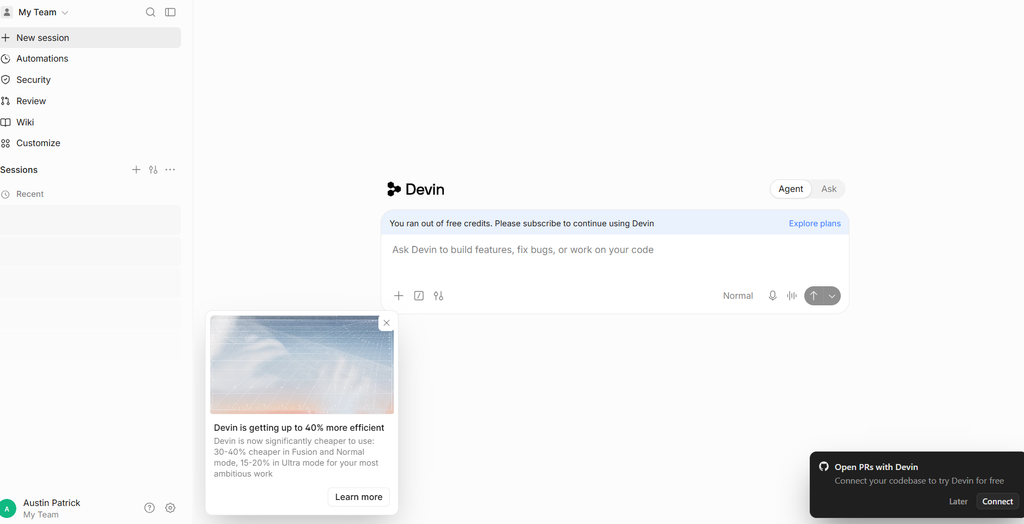
Most beginners will never leave the free plan, so it deserves a close look in any Windsurf review. Cognition’s pricing page lists four items for $0:
- Unlimited Tab completions
- Unlimited inline edits
- A light quota for coding with AI agents
- Limited model availability
The first two carry the most weight. Tab completions are the faded suggestions that pop up while you type. Inline edits, on the other hand, let you select code and ask for a quick change in plain English. Because neither has a cap, you can lean on both through long study sessions without counting.
The agent quota works differently. It resets daily and weekly, the editor shows how much you have left, and Cognition does not publish an exact figure. As a result, asking the agent to build an entire app can drain it fast. Short, focused requests, however, stretch it much further.
Model access is the other trade-off. Frontier models from OpenAI, Anthropic, Google, and SpaceXAI require the Pro plan. For learning, though, this rarely hurts. Explaining an error or writing a small function does not call for the most powerful model on the market.
Bottom line: for daily practice, the free plan is the strongest part of this Windsurf review. For large, agent-heavy projects, it runs out of road.
Key Features in This Windsurf Review
Devin Desktop has dozens of features, yet beginners need only a few of them. Below, this Windsurf review covers the ones worth learning first, with notes on why each one helps.
Tab: Autocomplete That Reads Ahead
Tab is the editor’s autocomplete, and it remains its best free feature. As you type, it offers the rest of a line or a whole block of code. Press Tab to take the suggestion, or just keep typing to skip it.
It also looks beyond the next word. For example, after you rename a variable once, Tab may offer the same rename further down the file. That saves keystrokes and quietly teaches you patterns.
One habit makes all the difference: read each suggestion before you accept it. Think of it as a hint from a tutor, not an answer sheet, and you will learn the syntax instead of copying it.
Inline Edits: Quick Fixes in Plain English
Inline edits handle small changes to code you already wrote. Select a few lines, open an inline edit (Windsurf has long used Ctrl+I, or Cmd+I on a Mac), and describe what you want. You might type “add a comment to every line” or “rewrite this loop as a list comprehension.”
The editor then shows a diff, which is a before-and-after view of the change. You accept it or reject it. Since inline edits are unlimited for free users, they make the perfect sandbox for experiments.
Devin Local: The Agent That Replaced Cascade
Devin Local is the built-in AI agent, and it took over from Cascade on September 8, 2026. An agent goes further than autocomplete. It can open several files, create new ones, and run terminal commands to check its own work.
The Devin Local documentation says the agent needs up to 30% fewer tokens than Cascade for most tasks. Fewer tokens means your free quota lasts longer. It can also start subagents, which are small helpers that take on parts of a bigger job.
For beginners, the permission system is the real highlight. You decide whether the agent may edit files, run commands, or fetch web pages, and you can choose allow, deny, or ask for each. While you are learning, keep everything on ask. That way, nothing happens without your approval.
Plan Mode: A Free Lesson in Problem Solving
In Plan mode, the agent only reads and researches. It studies your project, writes a step-by-step plan, and then stops until you approve it.
The agent saves each plan as a Markdown file, so you can edit it or come back later. Add the word “megaplan” to your prompt, and the agent plans in more depth and asks you at least one clarifying question first. Reading these plans shows you how experienced developers break big problems into small steps.
Agent Command Center and Spaces
The Agent Command Center greets you when the app opens. It works like a Kanban board, meaning a board of cards arranged in columns. Each card is an AI session, grouped by status, so you can spot what is running and what needs your review.
Spaces add another layer. They bundle related sessions, files, and pull requests by task, such as one Space for homework and another for a portfolio site. Experienced users can even run several agents at once, locally or in the cloud.
Truthfully, a beginner can ignore most of this at first. Press Ctrl+G (Cmd+G on a Mac) to jump to the classic editor, and return to the Command Center when you feel ready.
Rules, AGENTS.md, and Skills
Of everything in this Windsurf review, rules are the easiest way to shape the agent into a patient tutor. They are plain-text instructions that apply to every conversation. The editor reads them from a .devin/rules/ folder or an AGENTS.md file in your project, and it still understands older .windsurfrules files.
Try this starter AGENTS.md file in your next practice project:
# Project guidelines
- Language: Python 3
- Explain each change in plain English before editing any file.
- Keep functions short and comment them for a beginner.
- Ask before deleting or renaming files.
Skills go one step further. Each skill is a reusable set of instructions that the agent loads on its own when a task calls for it. Skills also take over from two retired Cascade features, Memories and Workflows.
Codemaps, Extensions, MCP, and ACP
Codemaps draw a picture of how a project’s files connect, which helps when you clone an unfamiliar tutorial repository. Web learners also get a built-in browser pane for previewing a local site beside the agent.
The editor runs on a recent version of VS Code, so many popular extensions and themes work. That said, a few Microsoft-only extensions may be missing from its store. You can also plug in outside services through MCP (Model Context Protocol), and Devin Local asks before it calls any MCP tool.
Finally, ACP (Agent Client Protocol) lets you run other coding agents, such as Claude Code or OpenAI’s Codex, in the same window. You will not need this on day one, but it leaves plenty of room to grow.
Installing Windsurf (Devin Desktop) on Windows, macOS, and Linux
The rest of this Windsurf review assumes the editor is on your machine, so let’s install it now. Setup takes only a few minutes:
- Get the installer. Go to the official Devin Desktop download page and choose your system. There are builds for Windows (x64 and Arm), macOS (Apple Silicon and Intel), and Linux (.deb and .tar.gz).
- Run it and open the app. Install it like any other program. On first launch, past Windsurf users can bring their settings across, while newcomers can start fresh.
- Sign in. Log in or create a free account to switch on the Free plan and its AI features.
- Install a language. The editor does not include programming languages. For the walkthrough below, download Python 3 from the official Python website.
- Open and trust a project folder. Make an empty folder and open it. If the editor asks whether you trust it, say yes for your own work, because Restricted Mode turns every AI agent off.
- Add the terminal shortcut (optional). Open the Command Palette with Ctrl+Shift+P (Cmd+Shift+P on a Mac) and run the command that adds
devin-desktopto your PATH. After that,devin-desktop .opens the current folder from any terminal. - Set up Git. Git keeps snapshots of your work, so you can undo any AI change. New to it? Our list of Git tools for beginners makes the learning curve far gentler.
Once setup is done, Ctrl+G (Cmd+G on a Mac) toggles between the Command Center and the classic editor.
Windsurf Review Walkthrough: Building a Python Expense Tracker
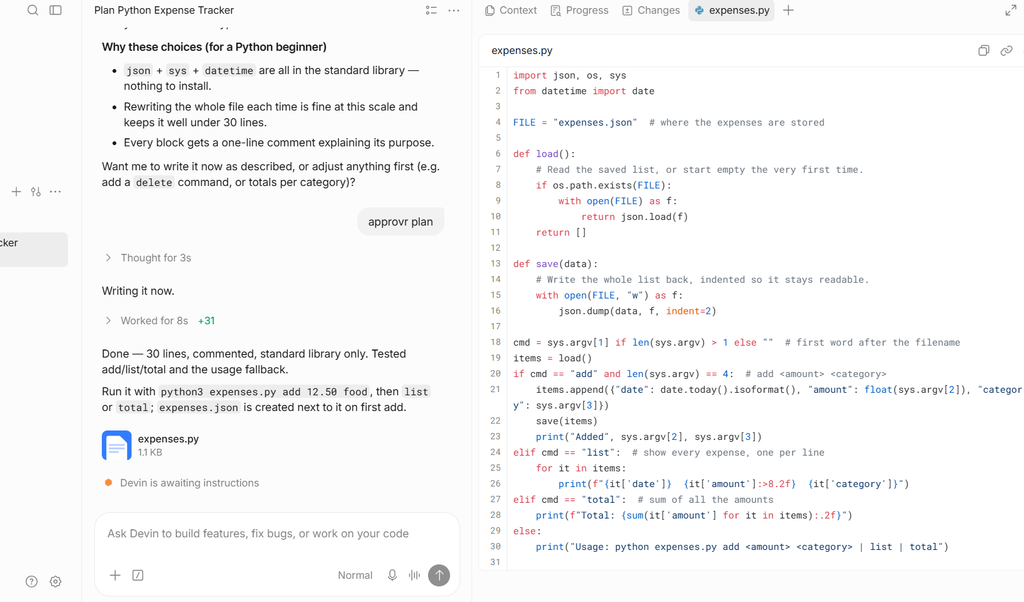
Features are easier to judge in action. So this section of the Windsurf review follows a small Python project from start to finish: a command-line expense tracker that stores data in a JSON file. AI output varies from run to run, so your code will not match exactly. Even so, the workflow stays the same.
Step 1: Ask for a Plan First
Start a new Devin Local session, switch to Plan mode, and send a prompt like this:
I’m new to Python 3. Plan a small command-line expense tracker that saves expenses in a JSON file. Keep it under 30 lines, comment the code, and explain your plan in simple terms before you write anything.
The agent looks at your empty folder, drafts a plan, and pauses. Read it slowly. If a step confuses you, ask about it before you approve.
Step 2: Read the Code Before You Run It
Once you approve, the agent creates the file and shows the diff. Expect something along these lines:
# expenses.py - a tiny expense tracker (Python 3)
import json
from pathlib import Path

DATA_FILE = Path("expenses.json")


def load_expenses():
    """Return saved expenses, or an empty list on first run."""
    if DATA_FILE.exists():
        return json.loads(DATA_FILE.read_text())
    return []


def add_expense(expenses, name, amount):
    """Add one expense and save the whole list."""
    expenses.append({"name": name, "amount": round(amount, 2)})
    DATA_FILE.write_text(json.dumps(expenses, indent=2))


def total(expenses):
    """Add up every amount."""
    return sum(item["amount"] for item in expenses)


if __name__ == "__main__":
    expenses = load_expenses()
    add_expense(expenses, "Coffee", 3.50)
    print(f"Total spent: ${total(expenses):.2f}")
Next, select any line that puzzles you and ask the agent to explain it. You might ask why it uses pathlib rather than plain text paths. Questions like this barely touch your quota, yet they often teach more than the code itself.
Step 3: Add a Safety Check With an Inline Edit
Now select the add_expense function, open an inline edit, and type: “Reject amounts of zero or less with a clear error message.” The editor will suggest something like this:
def add_expense(expenses, name, amount):
    """Add one expense and save the whole list."""
    if amount <= 0:
        raise ValueError("Amount must be greater than zero.")
    expenses.append({"name": name, "amount": round(amount, 2)})
    DATA_FILE.write_text(json.dumps(expenses, indent=2))
Inline edits are free and unlimited, so repeat this loop as often as you like.
Step 4: Run It, Then Write the Next Feature Yourself
Open the built-in terminal and run python expenses.py (use python3 expenses.py on macOS and Linux). The total should appear on screen. After that, write the next feature on your own, such as a function that prints every expense. Let Tab offer ideas, but keep the decisions yours. That balance is the most important lesson in this Windsurf review.
Step 5: Undo Mistakes Calmly
At some point, the agent will change something you did not want. Luckily, you have three safety nets. First, you can reject any diff before it lands. Second, revert buttons in the agent panel roll back a whole turn. Third, if you committed with Git before the session, git restore . returns your tracked files to the last commit.
How to Stretch the Free Quota: Tips From This Windsurf Review
The agent quota is the limit you will notice first. Thankfully, a few habits make it last far longer. Cognition itself recommends smaller prompts and smaller models, and these tips build on that advice.
- Reach for Tab and inline edits first. Both are unlimited, so save the agent for jobs that span several files.
- Write short, specific prompts. Ask for one feature at a time and leave out text the agent does not need. Our guide on how to write better prompts for AI coding tools shows exactly how.
- Plan before you build. A quick plan catches misunderstandings early and saves costly do-overs.
- Open a fresh session for each new task. Smaller context usually means cheaper messages.
- Put your preferences in rules. An
AGENTS.mdfile stops you from repeating the same instructions in every prompt. - Check the usage meter. The editor shows your daily and weekly usage, so glance at it before a big request.
Follow these habits, and the free plan will cover far more of your learning than you might expect.
Windsurf Pricing Review: Free, Pro, Max, Teams, and Enterprise
Cognition has changed its prices several times since 2025, so this Windsurf review uses the plans listed in late September 2026. Each paid plan comes with an allowance that refreshes daily and weekly, and you pay API prices for any extra usage.
| Plan | Price | What you get |
|---|---|---|
| Free | $0 | Light agent quota, limited models, unlimited inline edits and Tab completions |
| Pro | $20/month | Higher quotas, frontier models from OpenAI, Anthropic, Google, and SpaceXAI, Devin Cloud agents, and extra usage at API pricing |
| Max | $200/month | Everything in Pro, with much higher quotas |
| Teams | $80/month plus $40 per full seat | Pro features plus shared billing, an admin dashboard, and room for up to 200 users |
| Enterprise | Custom | Single sign-on, central admin controls, and a dedicated deployment option |
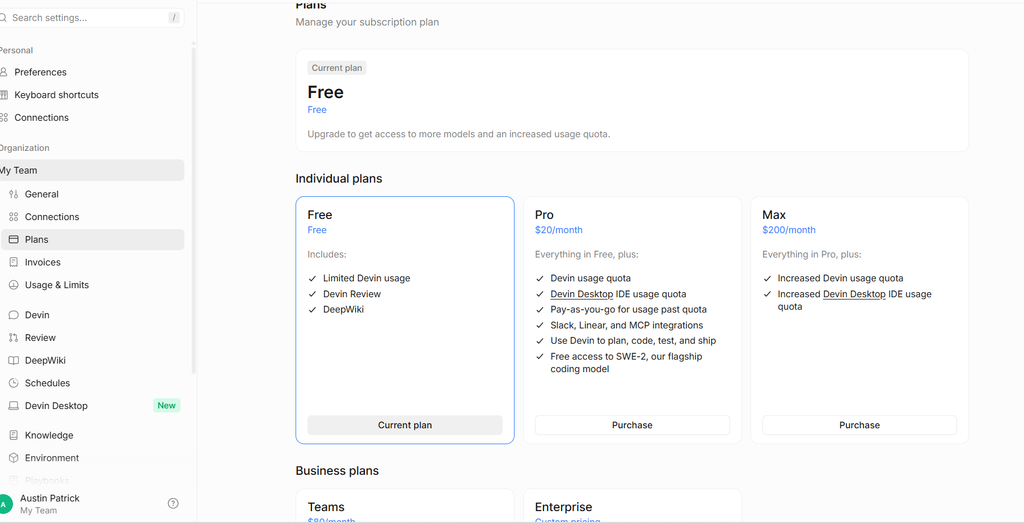
Pro also comes with free use of SWE-2, Cognition’s newest in-house model, in Devin Desktop and the Devin CLI until October 10, 2026. According to the SWE-2 announcement, the model scores close to leading frontier models on coding benchmarks while costing much less to run.
Should you upgrade? Probably not yet. Use the free plan for two to four weeks, and move to Pro only if the agent quota keeps blocking real work. After upgrading, you can stretch your allowance by keeping prompts focused and choosing smaller models for routine jobs.
Windsurf vs Cursor vs GitHub Copilot: Free Tier Review for Beginners
Most beginners end up choosing between three names. For this Windsurf review, we compared only the free plans, since that is where learners start.
| Feature | Windsurf (Devin Desktop) Free | Cursor Hobby | GitHub Copilot Free |
|---|---|---|---|
| Price | $0 | $0 | $0 |
| Autocomplete | Unlimited Tab completions | Limited Tab completions | 2,000 completions per month |
| Chat and agent use | Light daily and weekly agent quota | Limited agent requests | 50 chat requests per month |
| Where it runs | Its own VS Code-based editor | Its own VS Code-based editor | Extension for VS Code and other editors |
| First paid tier | Pro at $20/month | Pro at $20/month | Pro at $10/month |
Autocomplete is the clearest difference. Windsurf is the only one of the three with unlimited free completions, which suits learners who code every day. Meanwhile, Copilot’s 50 monthly chat requests are easy to track, and it works inside the regular VS Code editor. Cursor lands in the middle, with a polished editor but unpublished free limits.
For the full picture, including student deals and paid plans, read our detailed Cursor vs Windsurf vs GitHub Copilot comparison. It also explains why we still suggest Copilot for your very first weeks of coding. Limits change often, so check Cursor’s pricing and GitHub Copilot’s plans before you decide.
Pros and Cons From This Windsurf Review
Every tool involves trade-offs. Here is the balanced view from this Windsurf review on where the editor shines and where it stumbles.
What we liked
- Unlimited free autocomplete: Tab completions and inline edits never run dry on the free plan.
- Familiar surroundings: Its VS Code base means many extensions, themes, and shortcuts carry over.
- Guardrails for learners: Plan mode, permission prompts, and Restricted Mode stop the agent from acting behind your back.
- A lean agent: Devin Local needs up to 30% fewer tokens than Cascade did, so quotas go further.
- Space to grow: Cloud agents, subagents, and outside agents keep it useful as your skills improve.
- Runs everywhere: You can install it on Windows, macOS, and Linux.
What could be better
- Name confusion: Windsurf, Devin Desktop, Devin Local, and Devin Cloud blur together for newcomers.
- Stale tutorials: Plenty of guides still teach Cascade, Memories, Workflows, and one-click deploys.
- An unpublished free quota: Without exact numbers, planning your agent use involves guesswork.
- A crowded home screen: The Agent Command Center can overwhelm someone who just wants to code.
- Shifting prices: The move from credits to quotas and the Pro price rise drew public criticism from long-time users.
Common Beginner Mistakes With Windsurf
AI editors remove some obstacles, yet they create new ones. While researching this Windsurf review, the same five mistakes kept appearing:
- Trusting outdated tutorials. A video that shows Cascade Memories or a Deploy button predates the 2026 changes, so check the current Devin Desktop changelog instead. And since one-click deploys are gone, our guide on where to deploy your first Node.js app covers the alternatives.
- Accepting every suggestion. Pressing Tab on autopilot teaches nothing. So read each line and make sure you could explain it to a friend.
- Sending vague prompts. “Build me an app” burns quota quickly. Instead, name one feature, the language, and the result you want.
- Working without version control. A bad AI edit is hard to undo without Git. Commit before every agent session, and rolling back takes seconds.
- Letting commands run unchecked. Keep terminal commands on ask while you learn. Also, never paste passwords or API keys into a prompt.
Steer clear of these five, and the free plan will feel much roomier than its limits suggest.
Who Should Use Windsurf, According to This Review?
Based on this Windsurf review, the editor suits some learners far better than others. Use this checklist to see where you fit.
Windsurf is a strong match if you:
- Code most days and want unlimited autocomplete for free
- Want to see how an AI agent plans and builds software
- Already know VS Code and want a familiar layout
- Expect to take on bigger projects soon
Another tool may suit you better if you:
- Want to build an app without writing much code, in which case our Bolt.new vs Lovable vs Replit comparison is a better starting point
- Prefer a structured course before any AI help, as covered in Codecademy vs DataCamp vs Udemy
- Need heavy daily agent use but have no budget
- Study or work somewhere that approves only certain tools
In short, Windsurf rewards curious learners who enjoy exploring. If you would rather keep things quiet and simple, GitHub Copilot’s free plan inside VS Code may be the calmer choice.
Windsurf Review Verdict: Is It the Best Free AI Editor for Beginners?
So, is Windsurf the best free AI editor for beginners? On value, yes. No other major AI editor gives away unlimited autocomplete and inline edits, and Plan mode turns the agent into a patient teacher. That is why this Windsurf review lands at 4.2 out of 5.
| Criterion | Score (out of 5) |
|---|---|
| Ease of getting started | 4.0 |
| Learning value | 4.5 |
| Price | 5.0 |
| Reliability | 3.5 |
| Support and documentation | 4.0 |
| Overall | 4.2 |
However, “best free AI editor” is not the same as “best first tool.” If you have never written a line of code, GitHub Copilot inside VS Code is still the gentler start, as our comparison explains. The rebrand, the retired Cascade agent, and the busy home screen all add friction for absolute beginners. They also explain the lower reliability score, since features have moved or vanished several times this year.
Our advice, then, is simple. Once you know the basics, download Devin Desktop, switch to the classic view, and build small Python or JavaScript projects. Lean on Tab and inline edits, use the agent in Plan mode, and upgrade only when the quota truly holds you back. For more reviews like this one, browse our AI Coding Tools section.
Windsurf Review FAQ
These quick answers round out this Windsurf review.
Is Windsurf still free in 2026?
Yes. The editor, now sold as Devin Desktop, keeps a $0 plan with unlimited Tab completions, unlimited inline edits, a light agent quota, and limited model choice.
Is Windsurf the same thing as Devin Desktop?
Yes. Cognition renamed Windsurf to Devin Desktop on June 2, 2026, through an automatic update. Existing users kept their plans, settings, and extensions.
What happened to the Cascade agent?
Devin Local replaced it. Since September 8, 2026, Devin Local has been the only built-in agent, although old Cascade chats stay in your history and can continue in Devin Local.
Can I still deploy apps from Windsurf?
Not with one click. The old Deploy feature is gone, so you need a hosting platform instead. Our Render vs Railway comparison covers two beginner-friendly free options for Node.js apps.
Is Windsurf better than Cursor for beginners?
On the free plans, usually yes, because Windsurf gives unlimited Tab completions and inline edits while Cursor limits both. At $20 a month, both Pro plans cost the same, so try each for a week before paying.
Which programming languages does Windsurf support?
It handles most popular languages, including Python, JavaScript, TypeScript, Java, Go, Rust, PHP, and C++. You still need to install each language and any matching extension yourself.
Will an AI editor make me a lazy programmer?
Only if you let it do all the thinking. Ask it to explain code, study its plans, and type key parts yourself. For more ways to learn with AI instead of leaning on it, see our list of the best AI tools to learn programming.
Do I need a powerful computer to run Windsurf?
No. The AI models run in the cloud, so any computer that runs VS Code smoothly should cope. You do need a reliable internet connection for the AI features, though.
Is this Windsurf review up to date?
Yes, as of late September 2026. Cognition ships changes almost every week, however, so confirm prices on the official pricing page before you buy.